athphane/filament-editorjs
Filament EditorJS




A premium EditorJS field for Filament with seamless Spatie Media Library integration and a robust rendering system.
Filament EditorJS brings the power of Editor.js to your Filament admin panel, allowing you to create rich, block-based content with ease. It handles image uploads out of the box using Livewire and Spatie's Media Library, and provides a powerful rendering engine to display your content on the frontend with Tailwind CSS support.
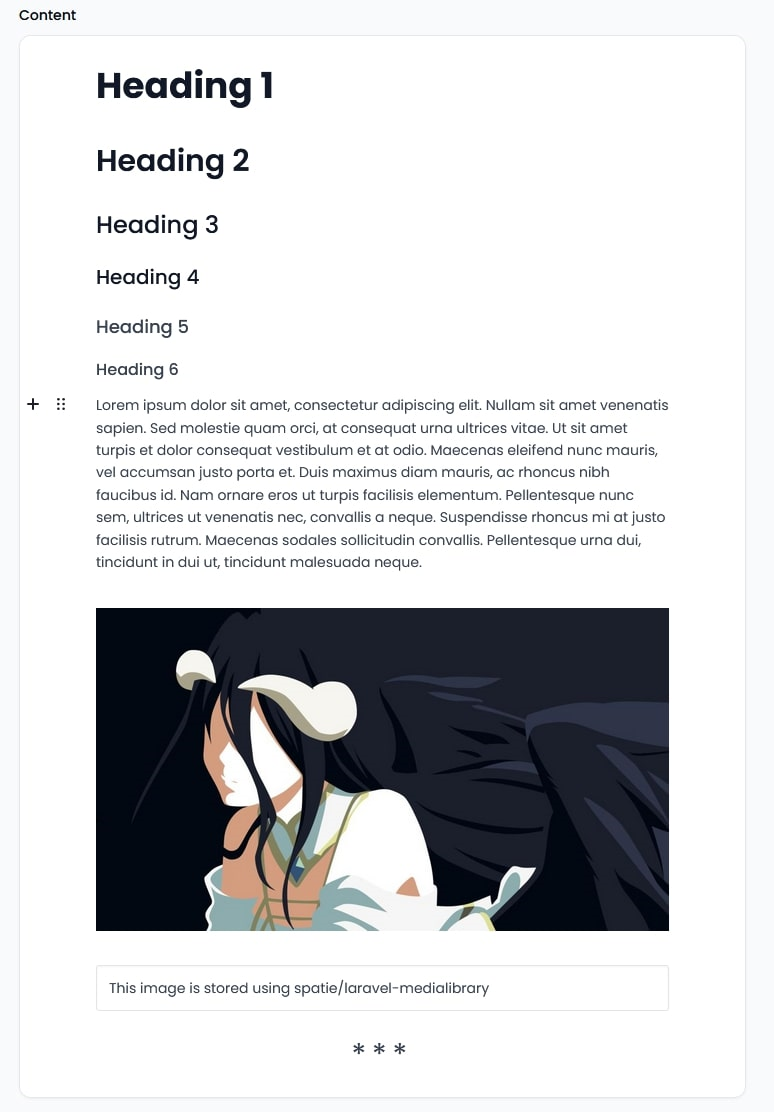
✨ Features
- 🚀 Zero-Config Uploads: Effortless image uploads using Filament's internal file attachment system.
- 📦 Spatie Media Library: Full integration for managing your content assets.
- 🛠️ Dynamic Plugin System: Easily add and configure both built-in and custom Editor.js tools.
- 🎨 Tailwind Rendering: Built-in support for rendering content with Tailwind Typography (
prose). - ⚡ Filament v5 Ready: Fully compatible with the latest Filament v4 and v5 features.
- 🧩 Extensible Blocks: Create custom renderers for your unique block types in PHP.
- 📏 Automatic Cleanup: Automatically manages and cleans up unused media attachments.
🚀 Installation
Install the package via composer:
composer require athphane/filament-editorjs
Publish the configuration file:
php artisan vendor:publish --tag="filament-editorjs-config"
🚥 Quick Start
1. Prepare your Model
Your model must implement Spatie's HasMedia interface and use the ModelHasEditorJsComponent trait provided by this package.
use Athphane\FilamentEditorjs\Traits\ModelHasEditorJsComponent;
use Spatie\MediaLibrary\HasMedia;
use Spatie\MediaLibrary\InteractsWithMedia;

class Post extends Model implements HasMedia
{
    use InteractsWithMedia;
    use ModelHasEditorJsComponent;

    // By default, it expects a 'content' column (json)
    // and registers a 'content_images' media collection.
}
2. Register the Plugin (Optional but recommended for v4/v5)
Add the plugin to your Filament Panel provider (usually AdminPanelProvider.php):
use Athphane\FilamentEditorjs\FilamentEditorjsPlugin;

public function panel(Panel $panel): Panel
{
    return $panel
        ->plugins([
            FilamentEditorjsPlugin::make(),
        ]);
}
3. Add to your Filament Resource
Simply use the EditorjsTextField in your form schema:
use Athphane\FilamentEditorjs\Forms\Components\EditorjsTextField;

public static function form(Form $form): Form
{
    return $form
        ->schema([
            EditorjsTextField::make('content')
                ->placeholder('Start writing your masterpiece...')
                ->columnSpanFull(),
        ]);
}
4. Render on the Frontend
Displaying your content is just as easy:
{{-- In your Blade view --}}
{!! \Athphane\FilamentEditorjs\FilamentEditorjs::renderContent($post->content) !!}
Note: For the best experience, ensure you have the @tailwindcss/typography plugin installed.
🛠️ Dynamic Plugin System
This package allows you to customize the editor tools dynamically.
Adding Custom Tools
You can add any Editor.js compatible tool by registering it in Javascript and then enabling it in PHP.
1. Register in Javascript
Add your custom tool to the global window.filamentEditorJsTools registry:
import LinkTool from '@editorjs/link'

window.filamentEditorJsTools = window.filamentEditorJsTools || {}
window.filamentEditorJsTools.linkTool = LinkTool
2. Enable in PHP
Use the addPlugin method on your field:
EditorjsTextField::make('content')
    ->addPlugin('linkTool', [
        'endpoint' => route('editorjs.link-tool-parser'),
    ])
🎨 Customizing Content Rendering
You can extend the rendering engine by adding custom renderers for specific block types.
Creating a Custom Renderer
use Athphane\FilamentEditorjs\Renderers\BlockRenderer;

class CustomBlockRenderer extends BlockRenderer
{
    public function render(array $block): string
    {
        return view('renderers.custom-block', [
            'data' => $block['data'],
        ])->render();
    }

    public function getType(): string
    {
        return 'custom-block-type';
    }
}
Registering your Renderer
Register it in your AppServiceProvider:
use Athphane\FilamentEditorjs\FilamentEditorjs;

public function boot()
{
    FilamentEditorjs::addRenderer(new CustomBlockRenderer());
}
Word Count for Reading Time
When creating a custom renderer, you can define how it contributes to the reading time calculation by implementing the getWordCount() method:
use Athphane\FilamentEditorjs\Renderers\BlockRenderer;

class CustomBlockRenderer extends BlockRenderer
{
    public function render(array $block): string
    {
        return view('renderers.custom-block', [
            'data' => $block['data'],
        ])->render();
    }

    public function getType(): string
    {
        return 'custom-block-type';
    }

    public function getWordCount(array $block): int
    {
        $text = $block['data']['content'] ?? '';
        return str_word_count(strip_tags($text));
    }
}
Calculating Reading Time
You can calculate the reading time for your content:
use Athphane\FilamentEditorjs\FilamentEditorjs;

// Get reading time string (e.g., "5 min read")
$readingTime = FilamentEditorjs::readingTime($post->content);

// Get total word count
$wordCount = FilamentEditorjs::countWords($post->content);
Built-in Block Types:
- paragraph, header, list, checklist, quote, code, table, inline-code: Automatically count words from their text content
- image, delimiter, raw: Return 0 words (no text content)
Configure words per minute in config/filament-editorjs.php:
'reading_time' => [
    'words_per_minute' => 225, // Default
],
⚙️ Configuration
The config/filament-editorjs.php file allows you to define different tool profiles:
'profiles' => [
    'default' => [
        'header', 'image', 'delimiter', 'list', 'underline', 'quote', 'table',
    ],
    'pro' => [
        'header', 'image', 'delimiter', 'list', 'underline', 'quote', 'table',
        'raw', 'code', 'inline-code', 'style', 'checklist',
    ],
],
Switch between profiles in your form:
EditorjsTextField::make('content')->tools('pro')
💻 Code Block Enhancements
The package includes powerful code block functionality with language selection and syntax highlighting powered by Shiki.
Features
- 🎨 100+ Language Support: Type any programming language for accurate syntax highlighting
- 🌈 Multiple Themes: Choose from various syntax highlighting themes (github-light, github-dark, nord, etc.)
- ✨ Line Highlighting: Mark specific lines as highlighted, added, deleted, or focused
- 🌓 Dark Mode Support: Automatic theme switching based on system preferences
- 🔙 Backward Compatible: Existing code blocks continue to work without modification
- ✍️ Smooth Experience: Compact language input in top-right corner
Usage
Code blocks work out of box with automatic syntax highlighting. Simply type your desired language in the small input field located in the top-right corner of the code block:
EditorjsTextField::make('content')
Configuration
You can configure code highlighting behavior using the following methods:
EditorjsTextField::make('content')
    ->codeTheme('github-dark')           // Set syntax highlighting theme
    ->codeLanguages(['php', 'js'])        // Restrict available languages (future enhancement)
    ->showLanguageLabel(true)             // Show/hide language label
    ->enableCopyButton(true)              // Enable copy button (future)
    ->enableLineHighlighting(true)        // Enable line highlighting
Language Selection
When you insert a code block in the editor, you'll see a small text input in the top-right corner. Simply type your programming language there:
- Type
phpfor PHP code - Type
javascriptorjsfor JavaScript - Type
pythonorpyfor Python code - Type any other language code (e.g.,
go,rust,ruby, etc.)
The input is unobtrusive and allows you to smoothly see your code while specifying the language. Common language codes include:
- Web:
javascript,typescript,html,css,php,vue,svelte - Systems:
c,c++,rust,go,assembly - Scripting:
python,ruby,bash,shell,powershell - Data:
json,xml,yaml,toml - Databases:
sql,plsql,sparql
Line Highlighting
You can mark specific lines with different visual states:
{
    "type": "code",
    "data": {
        "code": "const x = 1;\nconst y = 2;\nconst z = 3;",
        "languageCode": "javascript",
        "highlightLines": [1, 3],
        "addLines": [2],
        "deleteLines": [],
        "focusLines": []
    }
}
Available line modes:
highlightLines: Yellow background for important linesaddLines: Green background for new linesdeleteLines: Red background for removed linesfocusLines: Blue background with ring for focus
Available Themes
Shiki supports many VSCode themes. Popular options include:
github-light(default)github-darknordvitesse-darkone-dark-promonokaidracula- ...and many more!
Configuration File
Update config/filament-editorjs.php to set global defaults:
'code' => [
    'default_theme' => 'github-light',
    'line_highlighting' => true,
    'supported_line_modes' => ['highlight', 'add', 'delete', 'focus'],
],
Backward Compatibility
Existing code blocks without a languageCode will default to plaintext with basic formatting. The renderer gracefully handles missing data and falls back to safe HTML escaping.
Styling
All code block styles are included in the main CSS file. You can customize the appearance by overriding Tailwind classes in your project:
/* Custom code block styles */
.code-block-wrapper {
    /* Your custom styles */
}

.highlighted {
    /* Custom highlight style */
}
Examples
Basic Code Block:
Type "javascript" in top-right input
→ Enter your code
→ Gets syntax highlighted automatically
Code with Line Highlights:
Highlight lines 1 and 3
→ Lines get yellow background
→ Great for tutorials and explanations
Dark Theme:
Use in dark mode environment
→ Shiki automatically switches theme
→ Consistent with your design
Multiple Languages:
Type "php" for PHP code
Type "python" for Python code
Type "rust" for Rust code
→ Each gets proper highlighting
🔄 Upgrading
Please refer to the Upgrade Guide when moving between major versions.
🧪 Testing
composer test
🤝 Contributing
Contributions are welcome! Please see CONTRIBUTING.md for details.
📜 License
The MIT License (MIT). Please see License File for more information.
Related Packages
Powerful PHP database abstraction layer (DBAL) with many features for database s...
Laravel Serializable Closure provides an easy and secure way to serialize closur...
Version History
| Version | Released | PHP | Laravel | License |
|---|---|---|---|---|
| v2.7.0 | ^8.3 | ^11.0 | | MIT | |
| v2.6.4 | ^8.3 | ^11.0 | | MIT | |
| v2.6.3 | ^8.3 | ^11.0 | | MIT | |
| v2.6.2 | ^8.3 | ^11.0 | | MIT | |
| v2.6.1 | ^8.3 | ^11.0 | | MIT | |
| v2.6.0 | ^8.3 | ^11.0 | | MIT | |
| v2.5.0 | ^8.3 | ^11.0 | | MIT | |
| v2.4.0 | ^8.3 | MIT | ||
| v2.3.1 | ^8.3 | MIT | ||
| v2.3 | ^8.3 | MIT | ||
| v2.2 | ^8.3 | MIT | ||
| v2.1.0 | ^8.3 | MIT | ||
| v2.0.0 | ^8.3 | MIT | ||
| v1.1.0 | ^8.3 | MIT | ||
| v1.0.7 | ^8.3 | MIT | ||
| v1.0.6 | ^8.3 | MIT | ||
| v1.0.4 | ^8.3 | MIT | ||
| v1.0.3 | ^8.3 | MIT | ||
| v1.0.2 | ^8.3 | MIT | ||
| v1.0.1 | ^8.3 | MIT | ||
| v1.0.0 | ^8.3 | MIT |