iundd/a11y-me-video
| Install | |
|---|---|
composer require iundd/a11y-me-video |
|
| Latest Version: | 3.0.0 |
| License: | GPL-2.0-or-later |
| Last Updated: | Jul 10, 2024 |
| Links: | GitHub · Packagist |
Accessible video player based on MediaElement.js, A11y Plugin and Fluid.
The new content element supports many features:
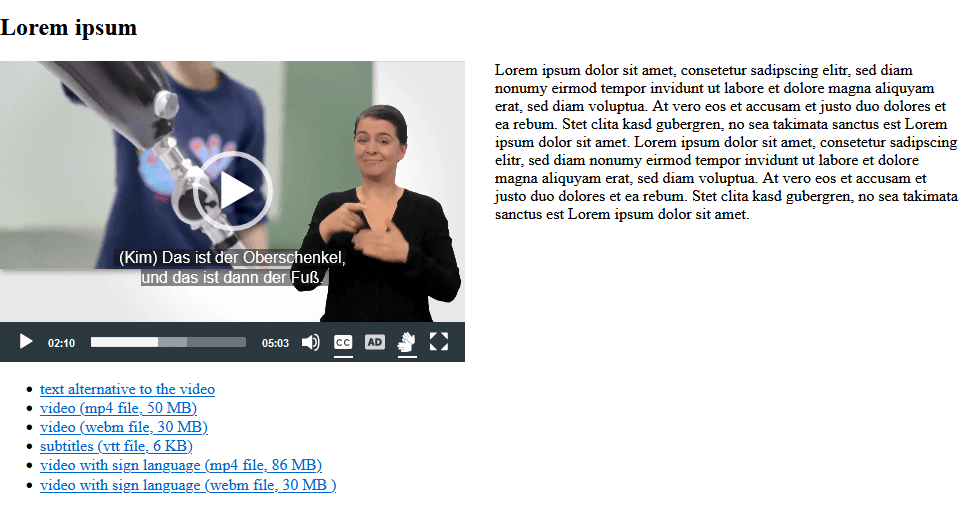
- supports two video formats: mp4 and additional webm
- customizable through fluid templates, sass, css and javascript
- supports accessibility by being able to optionally include different alternatives to the main video
- switchable subtitles (vtt file)
- switchable video with sign language (mp4 file, additional webm file)
- switchable alternative audio track with audio description (mp3 file)
- link to a page with text alternative
- video download links
- supports poster image
- supports data fields, settings and CSS classes, which are known from any
standard content elements e.g. Text & Media.
- header (header, type, align, date, link, subheader)
- text (ck-editor, video position: left, right, above, below)
- content element layout (layout, frame, space before, space after)
- video player based on MediaElement.js and A11y plugin
- control via keyboard, mouse and touch
- keyboard focus highlight
- screen reader support with wai-aria
- 24 frontend languages
- video width (50%,100%) and video position (relative to text block)
- full screen mode available
- automatically adapts to the screen width
| URL | |
|---|---|
| Repository | https://github.com/iundd/a11y_me_video |
| Read online | https://docs.typo3.org/p/iundd/a11y-me-video/main/en-us/ |
| TER | https://extensions.typo3.org/extension/a11y_me_video |
Installation
The extension needs to be installed like any other TYPO3 CMS extension. Get the extension by one of the following methods.
Installation using composer
The recommended way to install the extension is by using Composer. In your composer based TYPO3 project root, just do
composer req iundd/a11y-me-video
Latest version from git
You can get the latest version from git by using the git command:
git clone https://github.com/iundd/a11y_me_video.git
Installation from TYPO3 Extension Repository (TER)
- Get it from the Extension Manager: Switch to the module
Admin Tools > Extensions. - Switch to
Get Extensionsand search for the extension key a11y_me_video. - Install the extension from the repository.
Download from extensions.typo3.org
- Go to https://extensions.typo3.org/extension/a11y_me_video and get the current version by downloading the zip version
Preparation: Include static TypoScript
The extension requires some TypoScript code, which must be integrated.
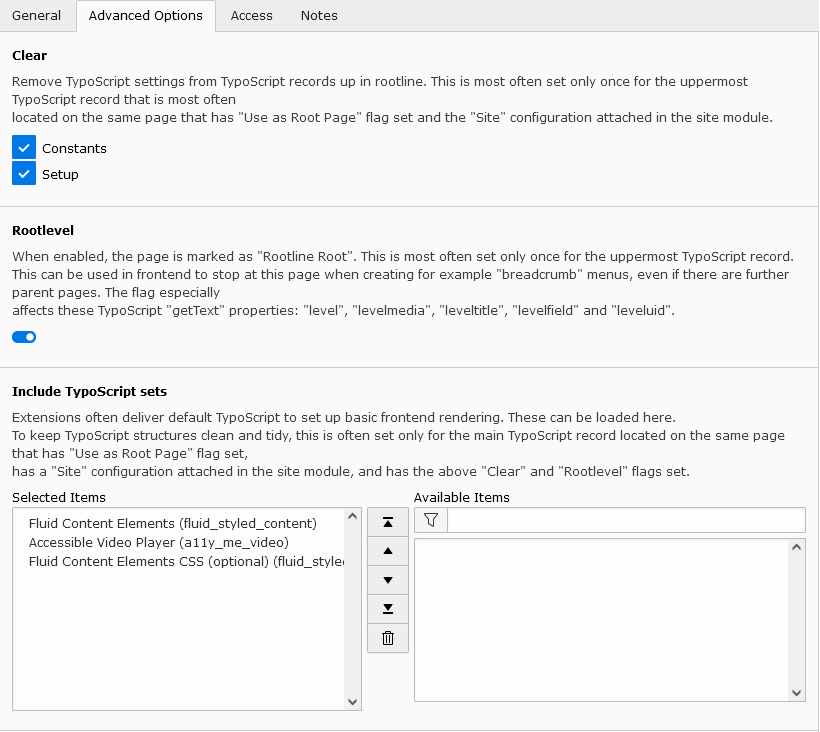
- Switch to the root page of your site.
- Switch to the TypoScript module and select the TypoScript record.
- Press the Edit the whole template record button and switch to the tab Advanced Options.
- Go to Include TypoScript sets. Add Fluid Content Elements and Accessible Video Player to Selected Items.
- For some css classes to work, you also need to select Fluid Content Elements CSS (optional)
Versioning
This project uses semantic versioning which means that
- bugfix updates (e.g. 1.0.0 => 1.0.1) just include small bugfixes or security relevant stuff without breaking changes,
- minor updates (e.g. 1.0.0 => 1.1.0) include new features and smaller tasks without breaking changes and
- major updates (e.g. 1.0.0 => 2.0.0) contain breaking changes which can be refactorings, features or bugfixes.
Textalternative
Configuration und Customisation
Overriding templates
EXT:a11y_me_video is using Fluid as template engine.
This documentation won't bring you all information about Fluid but only the most important things you need for using it. You can get more information in the section Fluid templates of the Sitepackage tutorial. A complete reference of Fluid ViewHelpers provided by TYPO3 can be found in the Fluid ViewHelper Reference
Change the templates using TypoScript constants
Like any Extbase based extension, you can find the templates in the directory EXT:a11y_me_video/Resources/Private/.
If you want to change a template, copy the desired files to the directory where you store the templates.
We suggest that you use a sitepackage extension. Learn how to create a sitepackage extension.
plugin.tx_a11ymevideo {
    view {
        templateRootPath = EXT:mysitepackage/Resources/Private/Extensions/a11y_me_video/Templates/
        partialRootPath = EXT:mysitepackage/Resources/Private/Extensions/a11y_me_video/Partials/
        layoutRootPath = EXT:mysitepackage/Resources/Private/Extensions/a11y_me_video/Layouts/
    }
}
CSS and Javascript Assets
CSS and Javascript files are integrated via the fluid partial Resources/Private/Partials/Assets.html.
e.G.
<f:asset.css identifier="a11yMeVideo_PlayerCss" href="EXT:a11y_me_video/Resources/Public/StyleSheets/videoPlayer.min.css"></f:asset.css>
If necessary, you can integrate your own modified files from your site package extension here.
e.G.
<f:asset.css identifier="a11yMeVideo_PlayerCss" href="EXT:my_extension/Resources/Public/StyleSheets/videoPlayer.min.css"></f:asset.css>
Change CSS
You can adapt the CSS to your own needs. You can use the existing CSS or SCSS files as base. Copy the file to your own site package and include them with the alternative path.
You can find the original files here:
- EXT:a11y_me_video/Resources/Public/StyleSheets/
- EXT:a11y_me_video/Resources/Private/Scss/
Example: Change background color of video and controls (css or scss)
override css:
   /* background color video */
   .a11y-me-videoplayer video {
      background-color: #2b3840;
   }

   /* background color controls */
   .a11y-me-videoplayer.active-controls .mejs__controls:not([style*="display: none"])  {
      background-color: #2b3840;
   }
change scss variables (EXT:a11y_me_video/Resources/Private/Scss/_variables.scss)
   $a11y-video-outline-color : white;
   $a11y-video-controls-bg   : #2b3840;
Note:The color contrast (foreground to background) for controls must be at least 4.5:1.
Javascript Sources
| JavaScript source file(s) | Description |
|---|---|
| EXT:a11y_me_video/Resources/Public/JavaScript/Vendor/mediaelement/build/mediaelement-and-player.js | MediaElements.js player |
| EXT:a11y_me_video/Resources/Public/JavaScript/Vendor/mediaelement/build/lang.advanced/*.js | extended language files for player |
| EXT:a11y_me_video/Resources/Public/JavaScript/Vendor/mediaelement-plugins/dist/a11y/a11y.js | a11y plugin for subtitles und audio description |
| EXT:a11y_me_video/Resources/Public/videoPlayer.js | starts init mediaelement players & some fixes |
Override TypoScript settings
Change default header type
This setting determines which heading type is used when selecting default in the backend content module.
The default header type is 2 (= h2 header).
   tt_content.a11ymevideo_videoplayer {
       variables {
           defaultHeaderType.value = 2
       }
   }

   tt_content.a11ymevideo_videoplayer2 {
       variables {
           defaultHeaderType.value = 2
       }
   }
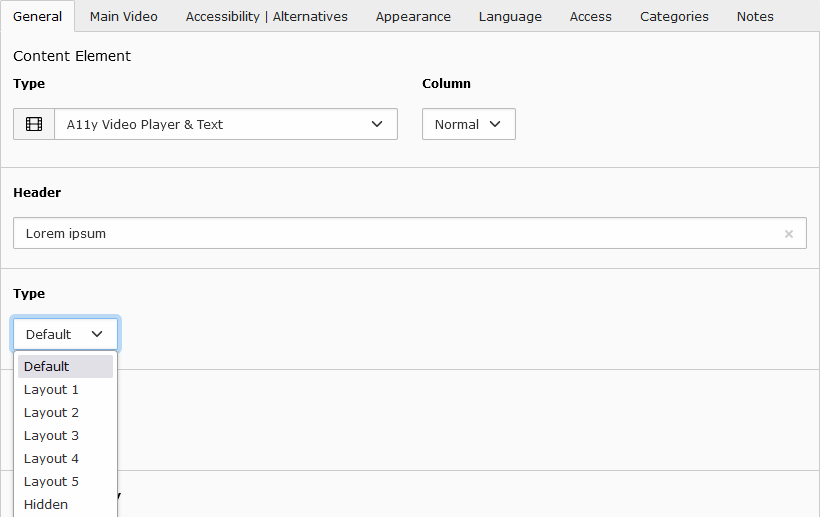
Add video player module to a page
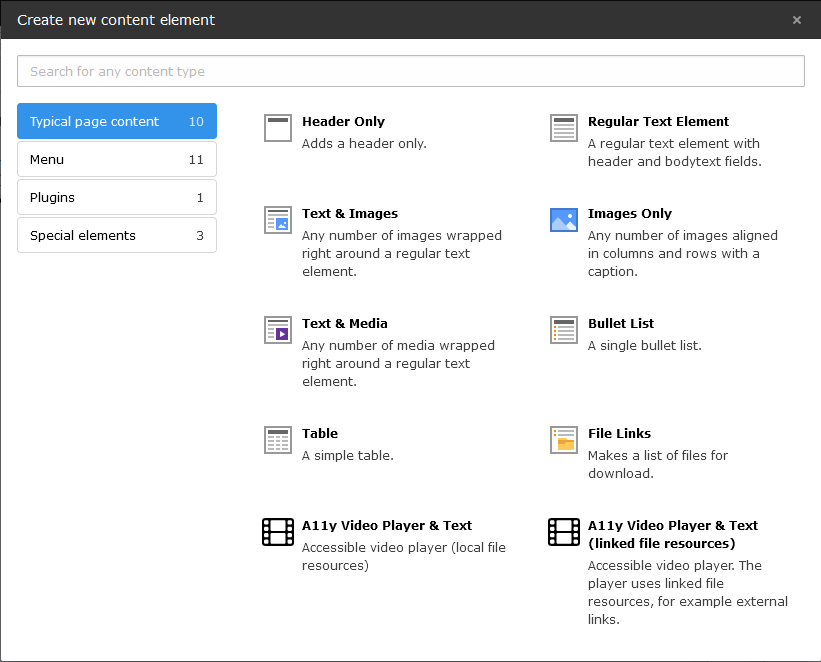
Select A11y Video Player & Text or A11y Video Player & Text (linked file resources):
Content-Element: A11y Video Player & Text
Accessible video player (local file resources)
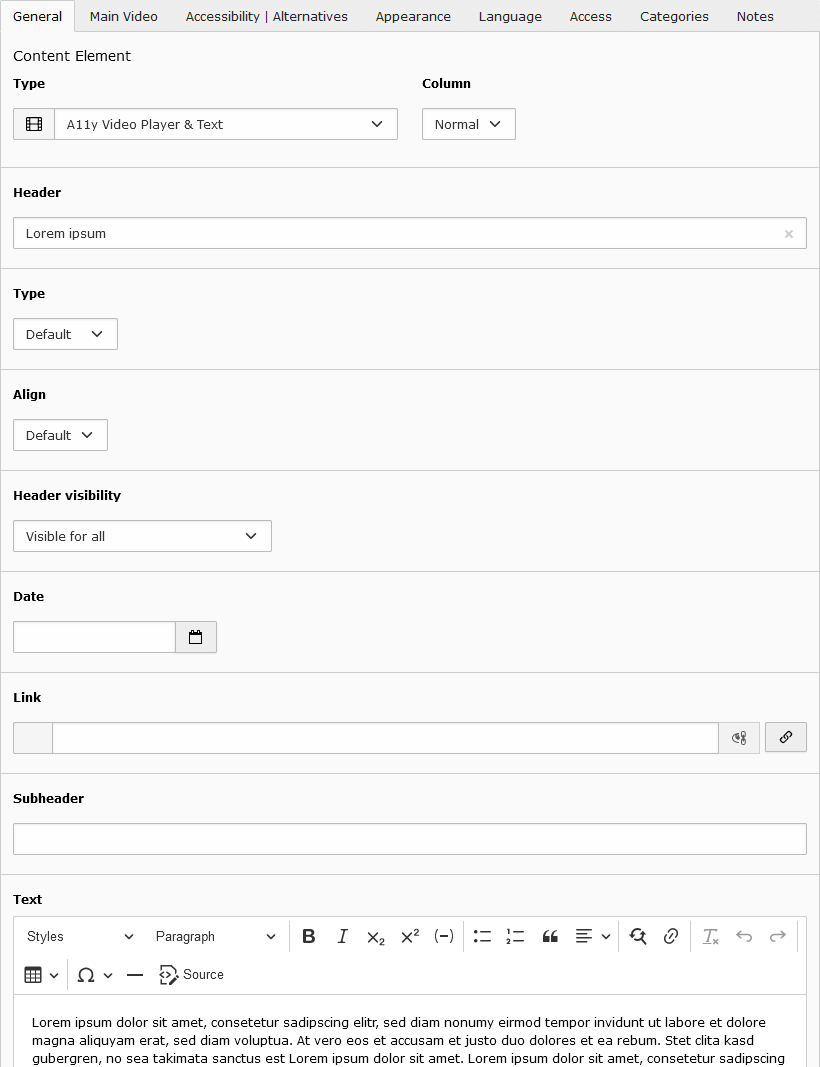
Tab General
This content element supports data fields und settings, which are known from any standard content elements e.g. Text & Media.
- Header (with Type, Align, Date, Link, Subheader)
- Text (ck-editor)
Tab Main Video
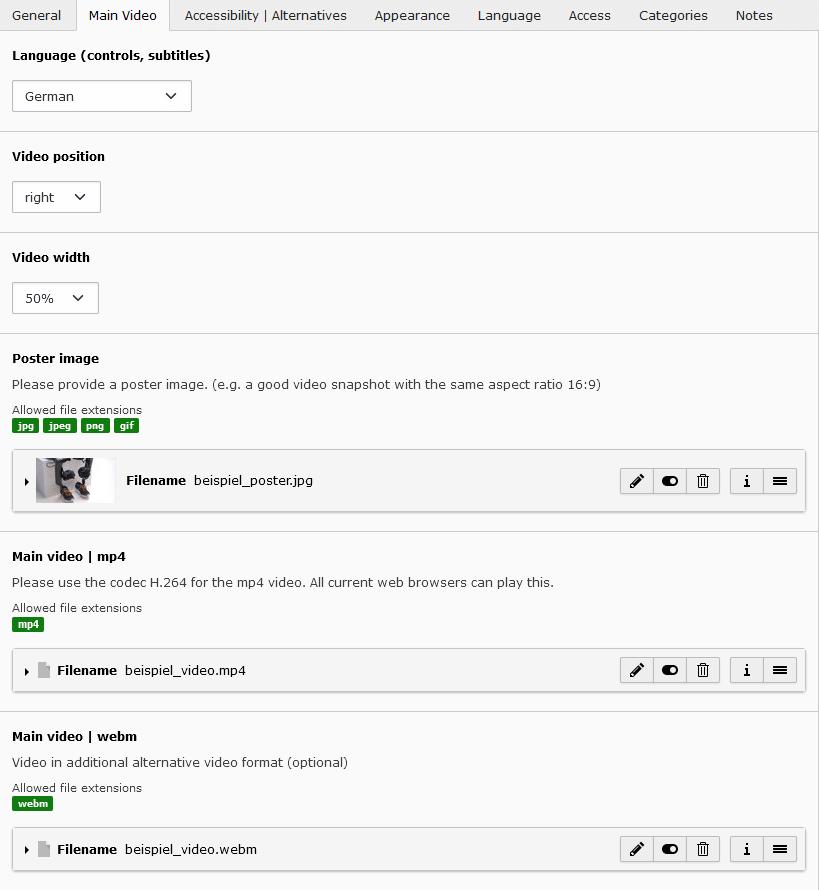
- Language (controls, subtitles)
-
Select the language of the controls and the subtitles file (if available) of the video player here.
The Default setting means that the settings on the page are used automatically.
You can choose another language from the list. Only the languages in the list are supported.
-
- Video position
- Set the position of the video relative to the optional text. (left, right, below, above)
- Video width
- The video can take up 50% or 100% of the available container width.
- Poster image
- Please provide a poster image. (e.g. a good video snapshot with the same aspect ratio 16:9)
- Main video | mp4
- Please use the codec H.264 for the mp4 video. All current web browsers can play this. This video is therefore mandatory.
- Main video | webm
- Video in additional alternative video format. (optional)
Tab Accessibility | Alternatives
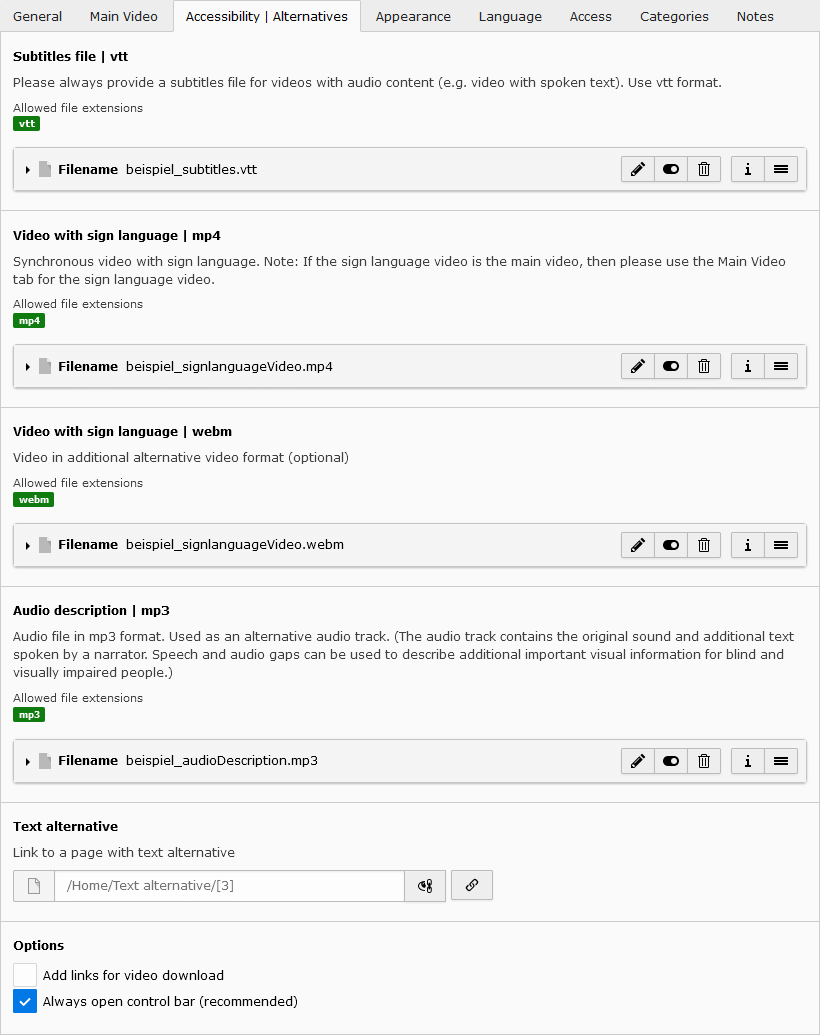
Here you can specify alternatives to the main video. Use it to improve accessibility.
- Video with sign language | mp4
-
Synchronous video with sign language.
A typical sign language video shows the original video in the background and the sign language interpreter in the foreground.
Note: If the sign language video is the main video, then please use the Main Video tab for the sign language video.
-
- Video with sign language | webm
-
Video in additional alternative video format (optional)
Note: This video will be ignored if you don't specify a mp4 video.
-
- Audio description | mp3
-
Audio file in mp3 format. Used as an alternative audio track.
The audio track contains the original sound and additional text spoken by a narrator. Speech and audio gaps can be used to describe additional important visual information for blind and visually impaired people.
-
- Text alternative
- Link to a page with text alternative.
- Options
- Add links for video download
- Always show control bar (recommended)
Tab Appearance
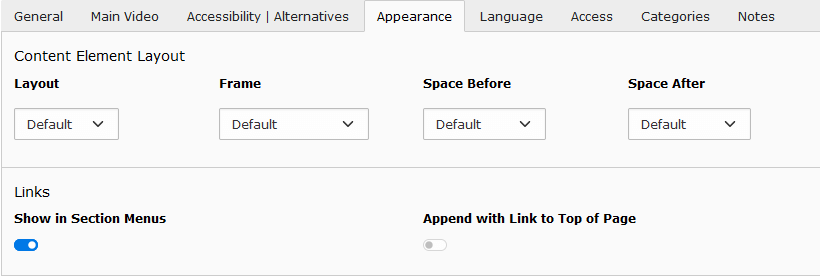
This content element supports data fields und settings, which are known from any standard content elements e.g. Text & Media.
- Layout
- Frame
- Space Before
- Space After
All settings are optional.
Backend Preview
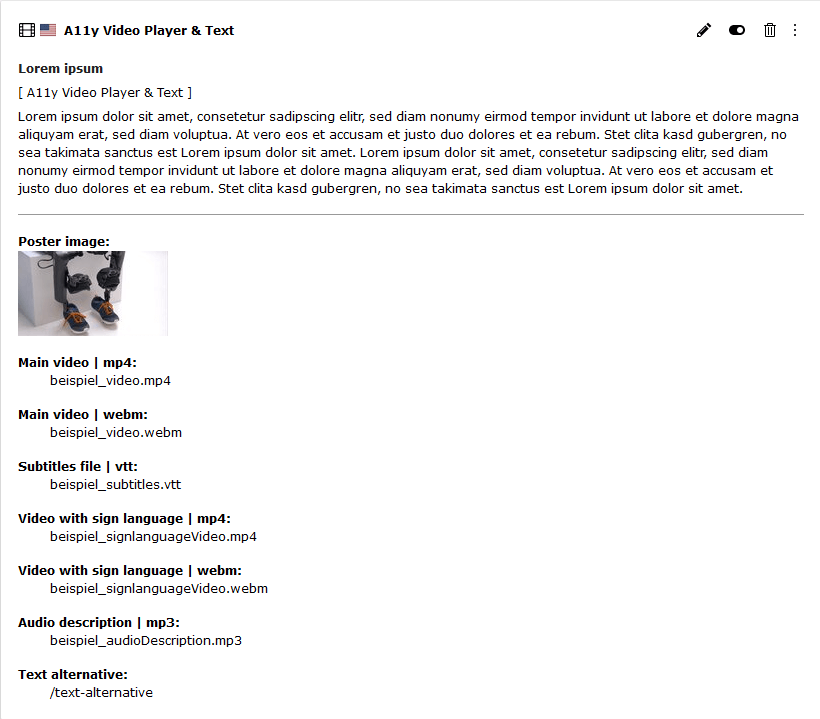
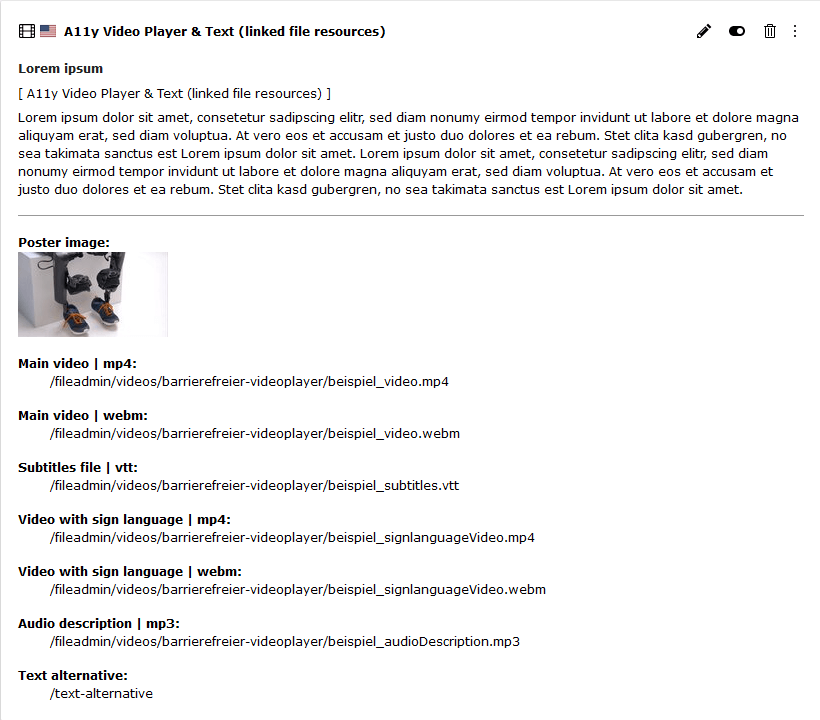
Content-Element: A11y Video Player & Text (linked file resources)
Accessible video player. The player uses linked file resources, for example external links.
Tab General
This content element supports data fields und settings, which are known from any standard content elements e.g. Text & Media.
- Header (with Type, Align, Date, Link, Subheader)
- Text (ck-editor)
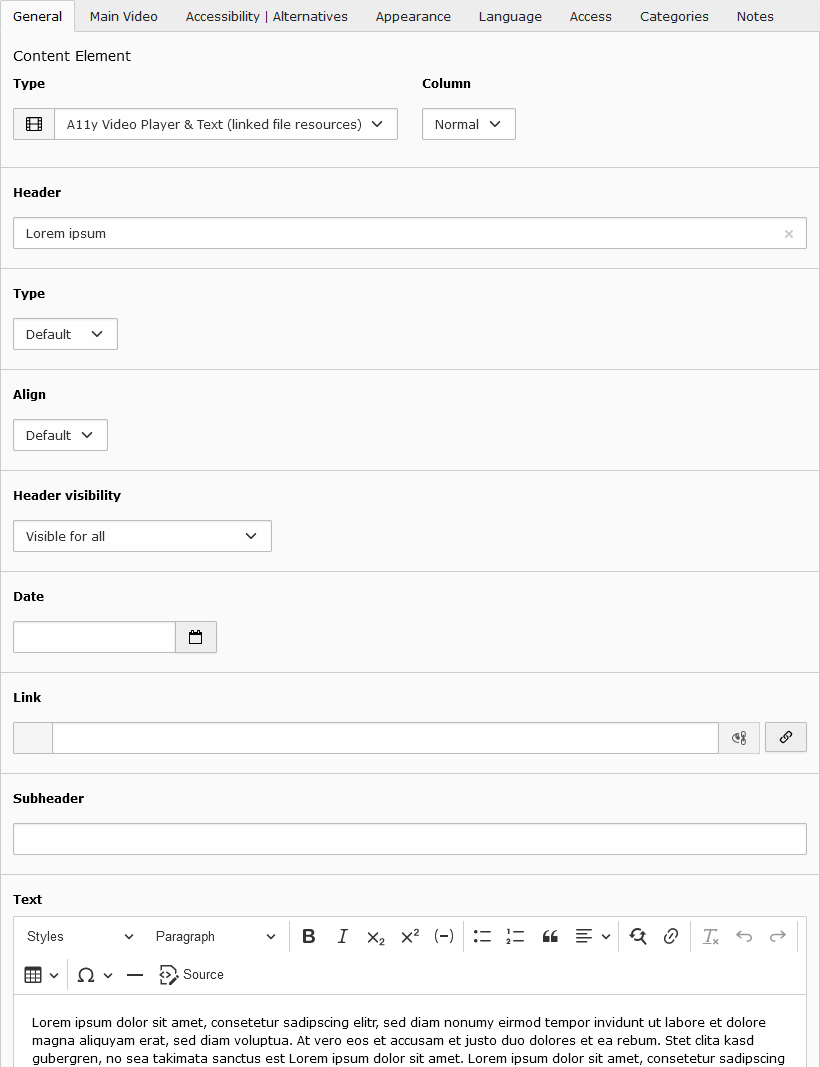
Tab Main Video
- Language (controls, subtitles)
-
Select the language of the controls and the subtitles file (if available) of the video player here.
The Default setting means that the settings on the page are used automatically.
You can choose another language from the list. Only the languages in the list are supported.
-
- Video position
- Set the position of the video relative to the optional text. (left, right, below, above)
- Video width
- The video can take up 50% or 100% of the available container width.
- Poster image
- Please provide a poster image. (e.g. a good video snapshot with the same aspect ratio 16:9)
- Main video | mp4
- Please use the codec H.264 for the mp4 video. All current web browsers can play this. This video is therefore mandatory.
- Main video | webm
- Video in additional alternative video format. (optional)
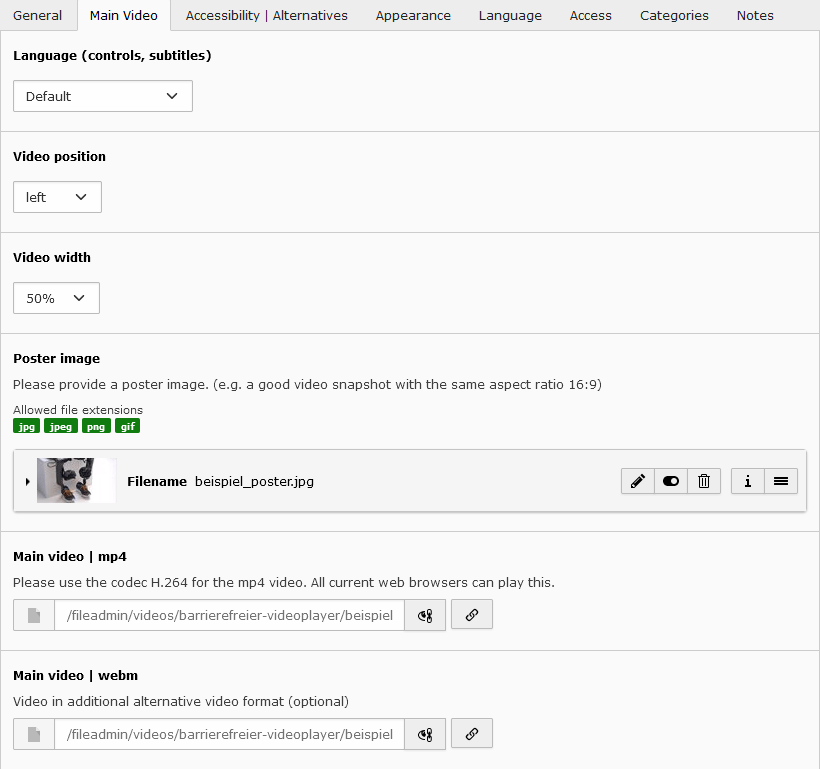
Tab Accessibility | Alternatives
Here you can specify alternatives to the main video. Use it to improve accessibility.
- Video with sign language | mp4
-
Synchronous video with sign language.
A typical sign language video shows the original video in the background and the sign language interpreter in the foreground.
Note: If the sign language video is the main video, then please use the Main Video tab for the sign language video.
-
- Video with sign language | webm
-
Video in additional alternative video format (optional)
Note: This video will be ignored if you don't specify a mp4 video.
-
- Audio description | mp3
-
Audio file in mp3 format. Used as an alternative audio track.
The audio track contains the original sound and additional text spoken by a narrator. Speech and audio gaps can be used to describe additional important visual information for blind and visually impaired people.
-
- Text alternative
- Link to a page with text alternative.
- Options
- Add links for video download
- Always show control bar (recommended)
Tab Appearance
This content element supports data fields und settings, which are known from any standard content elements e.g. Text & Media.
- Layout
- Frame
- Space Before
- Space After
All settings are optional.
Backend Preview
Examples File
Sorry. The old example files no longer exist. For a better understanding of the content requirements for the media files, you will find a similar video player on the following website:
https://www.aktion-mensch.de/inklusion/barrierefreiheit/barrierefreie-videos-fuer-alle.
The main video, the sign language video and the mp3 file with audio description must be in sync. This means that they all have the same timeline, so that you can easily switch between them at any time.
A typical sign language video shows the original video in the background and the sign language interpreter in the foreground.
The audio description is used as an alternative audio track. The audio track contains the original sound and additional text spoken by a narrator. Speech and audio gaps can be used to describe additional important visual information for blind and visually impaired people.
MediaElement.Js
Video player based on MediaElement.js and A11y Plugin.js (Aktion Mensch Plugin):
- MediaElements.js
- A11y Plugin (Aktion Mensch Plugin)
Related Packages
Version History
| Version | Released | License |
|---|---|---|
| 3.0.0 | GPL-2.0-or-later | |
| 2.0.2 | GPL-2.0-or-later | |
| 2.0.1 | GPL-2.0-or-later | |
| 2.0.0 | GPL-2.0-or-later | |
| 1.0.10 | GPL-2.0-or-later | |
| 1.0.9 | GPL-2.0-or-later | |
| 1.0.8 | GPL-2.0-or-later | |
| 1.0.7 | GPL-2.0-or-later | |
| 1.0.6 | GPL-2.0-or-later | |
| 1.0.5 | GPL-2.0-or-later | |
| 1.0.4 | GPL-2.0-or-later | |
| 1.0.3 | GPL-2.0-or-later | |
| 1.0.2 | GPL-2.0-or-later | |
| 1.0.1 | GPL-2.0-or-later | |
| 1.0.0 | GPL-2.0-or-later |